The Perfect Handoff: Combining AI Speed with Human Empathy
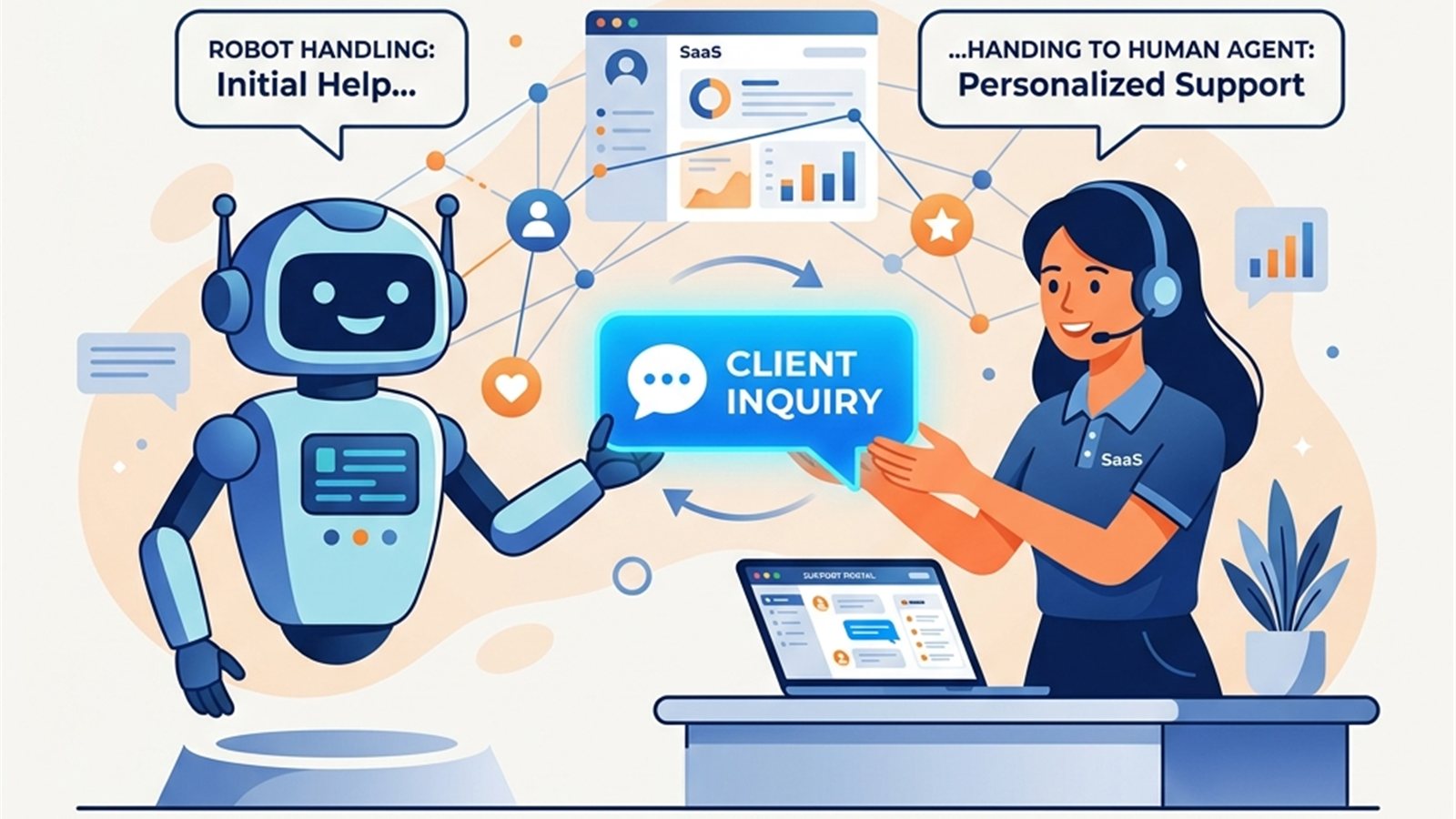
The biggest fear businesses have when deploying an AI agent is the “infinite loop”—the nightmare scenario where a frustrated customer is begging for help, but the AI keeps regurgitating the same irrelevant FAQ answer.
This happens when a platform forces you to choose between 100% automation or 100% human support. PicoBot is designed differently. We believe the future of customer experience is human and AI.
Here is exactly how to configure the Live Chat Handoff in PicoBot to give your customers the speed of automation with the safety net of human empathy.
Understanding the Handoff Triggers
By default, PicoBot attempts to resolve every inquiry using its trained Knowledge Base. However, the system is actively listening for specific signals that it’s time to step back and let a human take over.
These triggers include:
- Explicit Requests: If a user types “Speak to a human,” “Get me a real person,” or “Agent,” PicoBot immediately stops trying to answer and initiates the handoff protocol.
- Low Confidence Scores: If the AI determines that it does not have enough information in the Knowledge Base to provide an accurate answer, it will gracefully escalate rather than hallucinate.
- Negative Sentiment: Advanced sentiment analysis allows the bot to detect if the user is becoming increasingly frustrated or angry, triggering a proactive handoff.
Setting Up the Handoff Protocol
To ensure this process is seamless, you need to configure your Live Chat settings in the PicoBot dashboard.
1. Define Your Operating Hours
Go to Live Chat > Operating Hours. It is critical that the bot knows when your human team is actually at their desks.
If a user requests a human during business hours, the bot will say, “I’m transferring you to our team now. Someone will be with you shortly.”
If it’s 2 AM on a Sunday, the bot intelligently shifts to asynchronous capture: “Our human team is currently offline, but I’ve created a ticket for them. They will reply to your email first thing on Monday morning.”
2. Configure Team Notifications
A handoff is only successful if a human actually picks up the chat. Navigate to Live Chat > Notifications and ensure your routing is configured correctly.
- Turn on browser push notifications for your support staff.
- Enable the Slack or Microsoft Teams integration so your team gets pinged in their primary workspace the second a customer escalates.
3. Utilize the Live Chat Inbox
When an agent clicks into an escalated conversation in the PicoBot Live Chat dashboard, they aren’t starting from scratch.
The human agent can see the entire preceding conversation the user had with the AI. This means the customer never has to repeat themselves. The human can step in, read the context instantly, and say, “Hi John, I see you’re having trouble with the enterprise billing portal. Let me get that sorted out for you right now.”
The Best of Both Worlds
By perfectly calibrating your handoff settings, you achieve the holy grail of support: AI resolves 80% of routine questions instantly, and your human team spends 100% of their time on the high-value, complex interactions that require genuine empathy. To learn more about extending your AI’s capabilities before escalation, read our guide on Supercharging Agents with Custom Actions.
Ready to build your AI agent?
Join developers using PicoBot to deploy powerful AI agents in minutes. No credit card required.